Editing
Now before we even get into the meat and bones we need to talk about setup.
I use Adobe Premiere Pro and thus all screen shots will be from that software. However, the steps I have laid out an efficient editing workflow can be completed in whatever software you choose.
ALTHOUGH I HIGHLY SUGGEST YOU DO NOT EDIT ON MOBILE.
I know it may seem “more convenient,” but long term your screwing yourself over.
After you get past the initial learning curve, you will be saving yourself hours and hours of editing labor.
And good news, you don’t need to be some editing pro to make fantastic content. Because you have storyboarded and filmed with the pace in mind, the heavy lifting is already done for you.
The main things you need to be comfortable with, in terms of technical editing are:
Cutting clips
Along with deleting or reordering said clips
Adding pictures or videos
Basic effects
Rudimentary cropping or masking (if at all)
Adding overlays
Changing opacity
Key-framing
Sound design in terms of
Adding a voice over
Adding music and sound effects (SFX)
Adding text and subtitles
Pr has a fantastic auto-caption software that leaves room for creativity
1. SETUP
The goal when setting up your editing software is speed.
This mainly comes from key binds and the layout of your timeline.
Presets also help with timing, but with a more creative-focused editing style its hard to have one preset to fit all the unique scenarios and most of the time the focus is on the shot quality above anything else.
Using PARASOCIAL'S EDITING ASSETS (literally everything you could ever need to edit is in here.)
Let’s get your workflow set up so we can dive into the actual editing process.
1. WORKSPACE
This is my layout. I have my video playback on the left, my timeline in the middle, video properties above that, and my effects to the left.
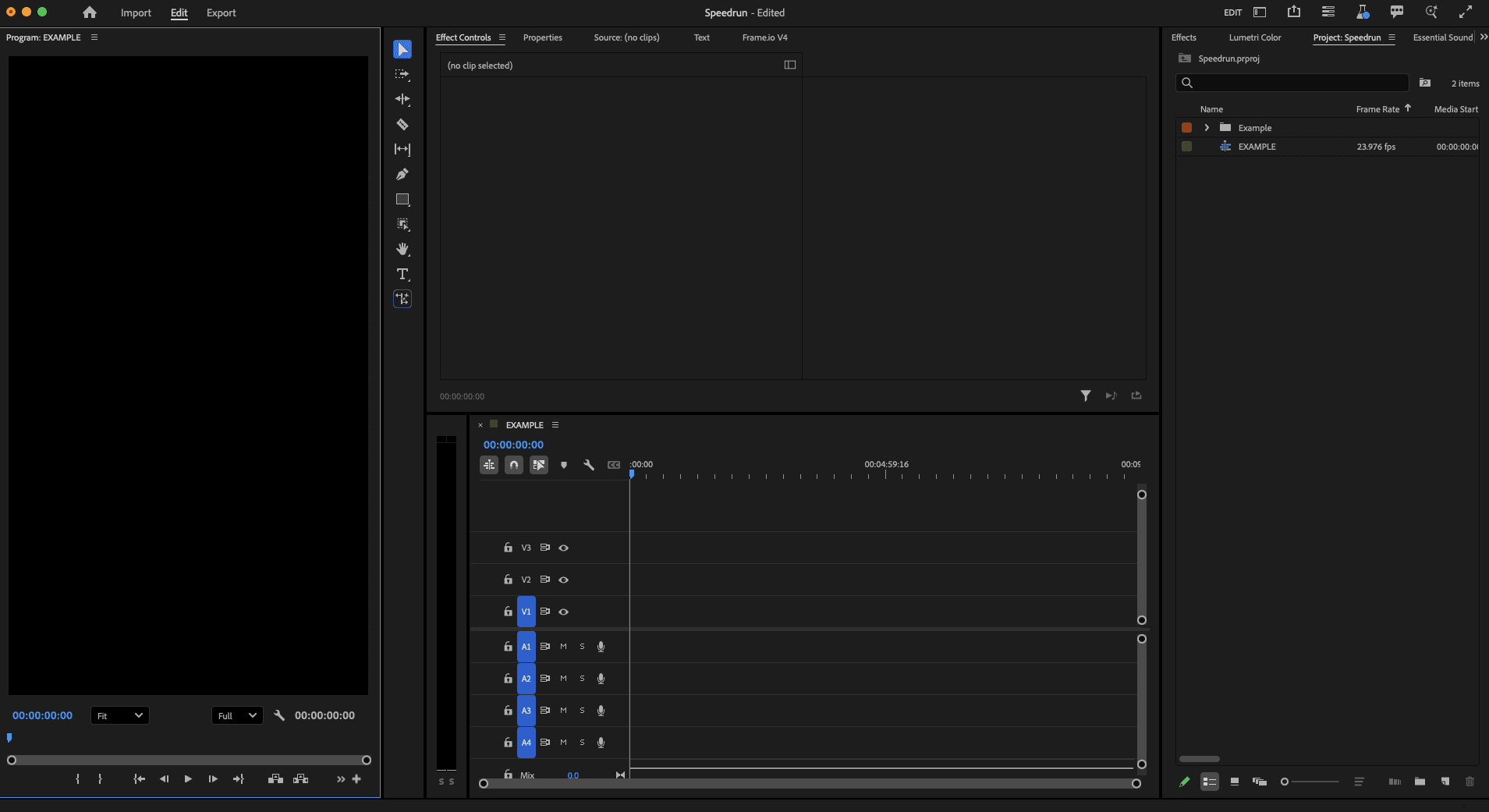
If you have Premiere you can import this workspace by navigating to:
Premier Pro in settings > Profile (username) > Layouts > then dragging .xml file you downloaded from drive.

2. SETTINGS, SEQUENCE, AND PRESETS
1. My Premiere Pro settings
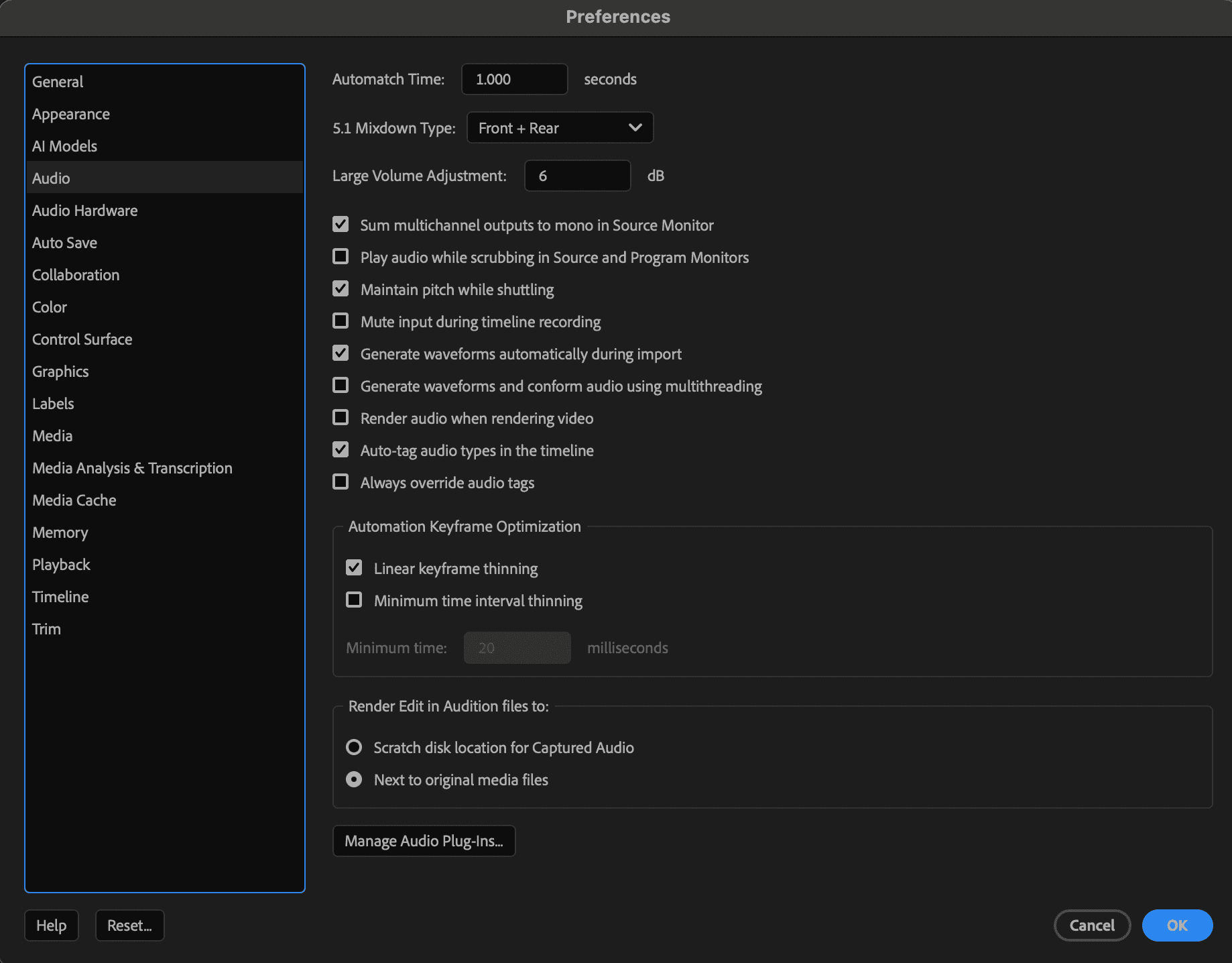
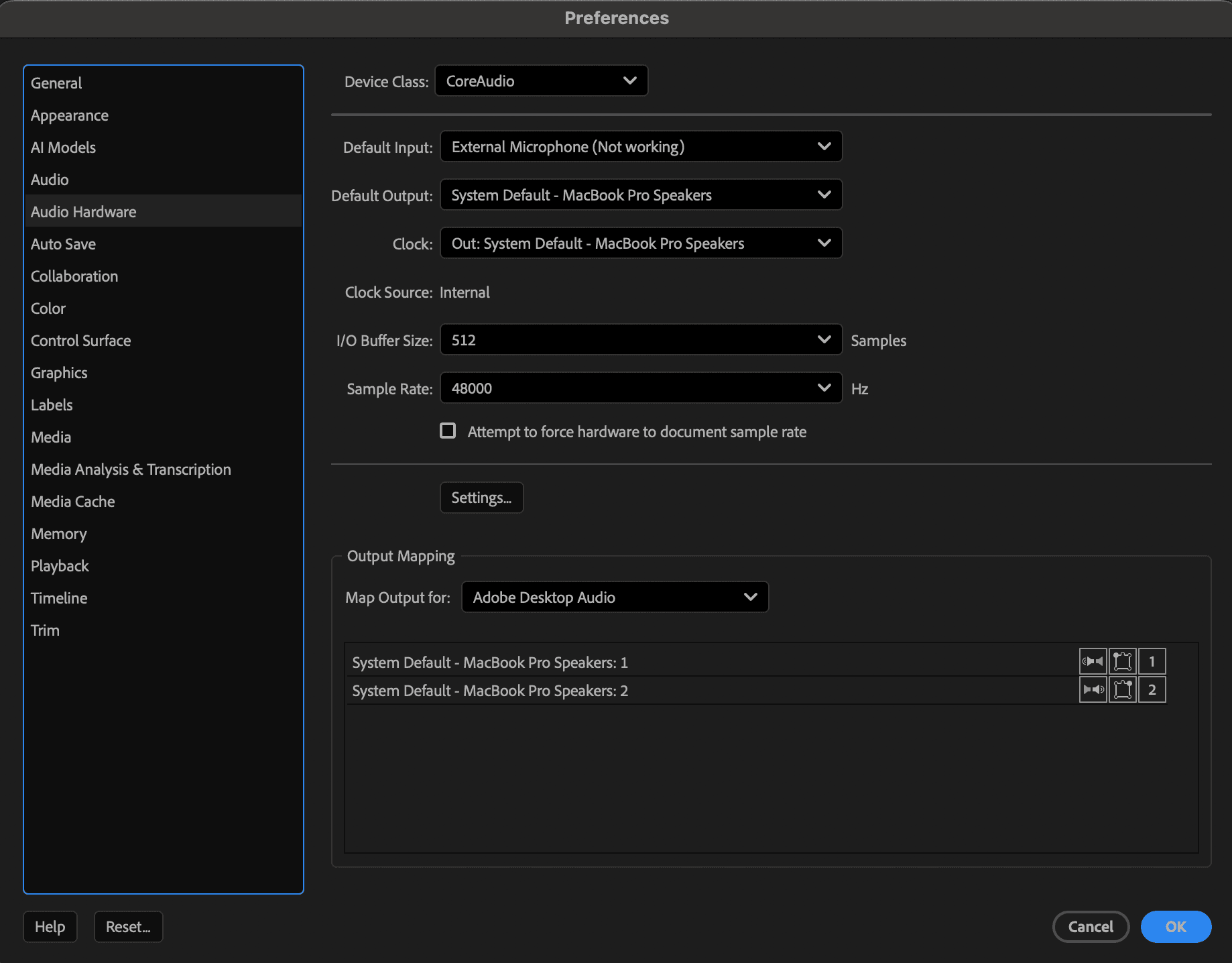
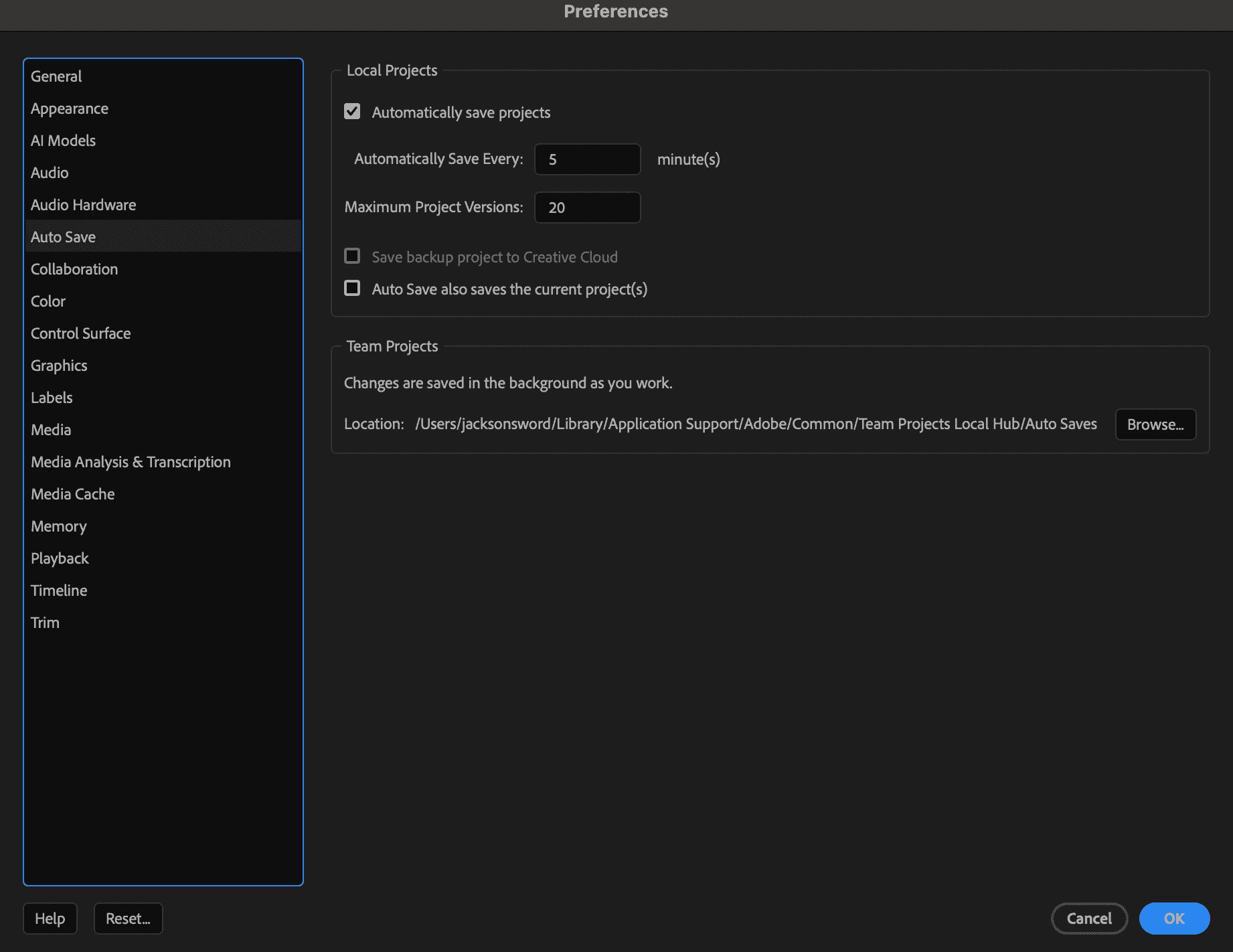
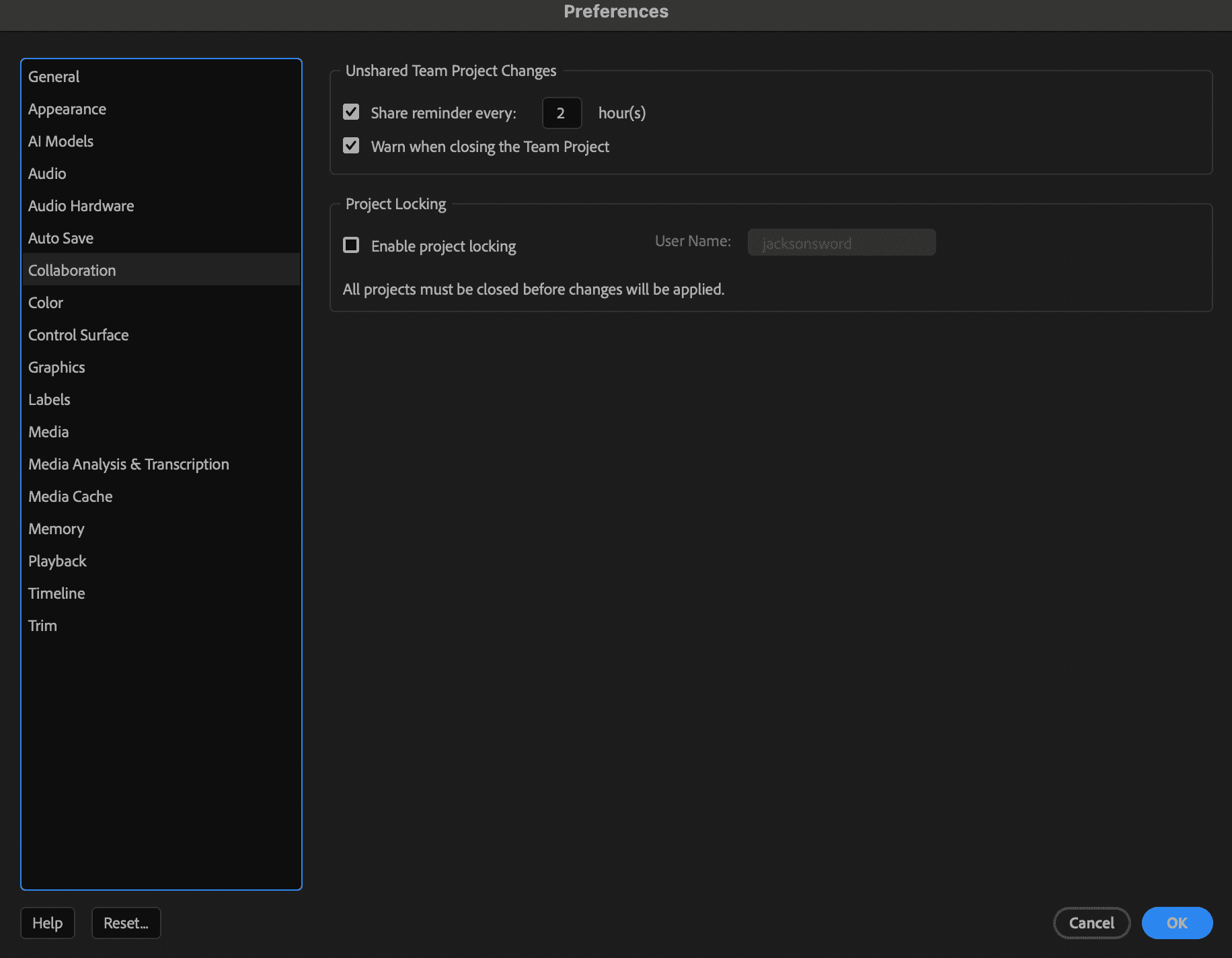
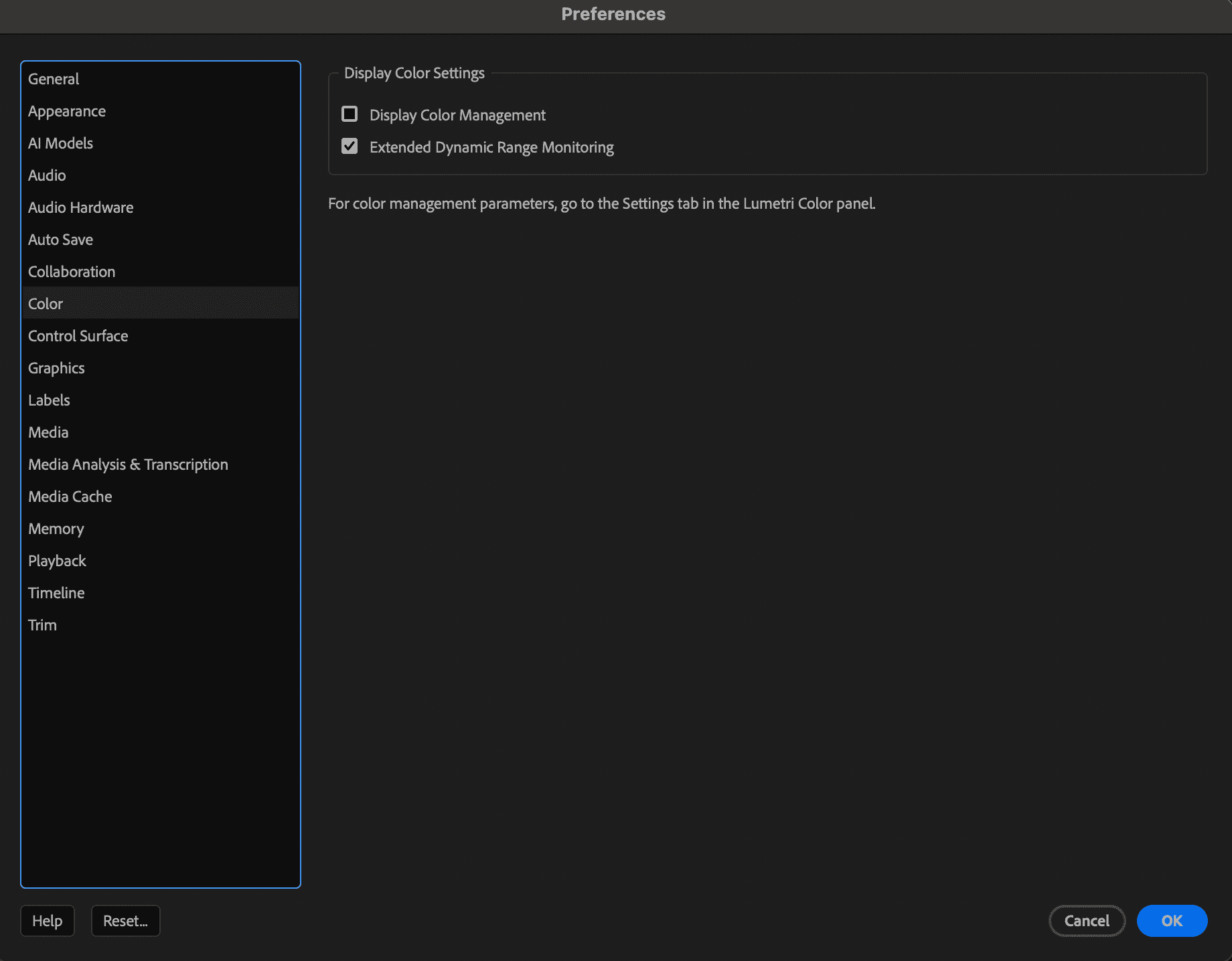

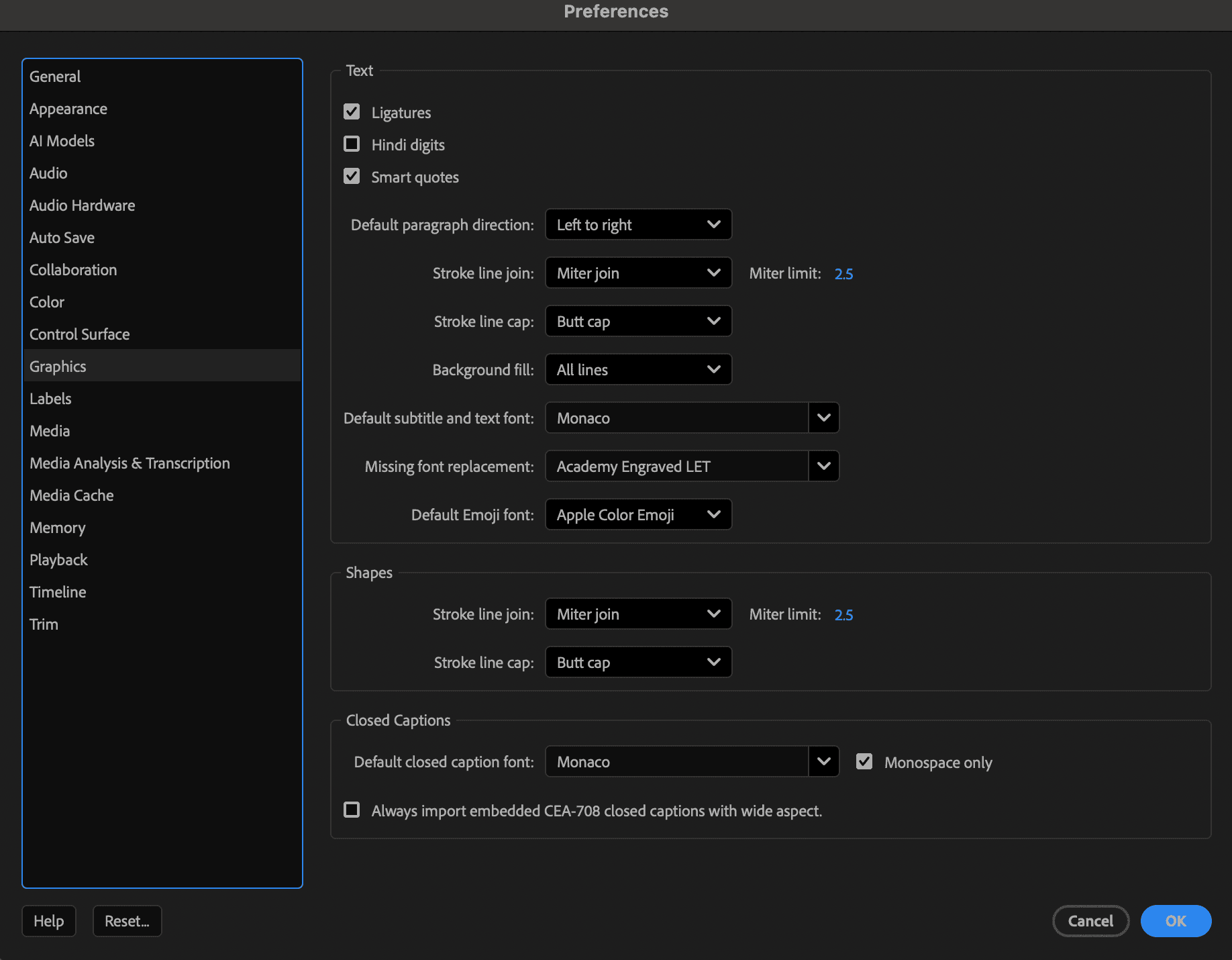
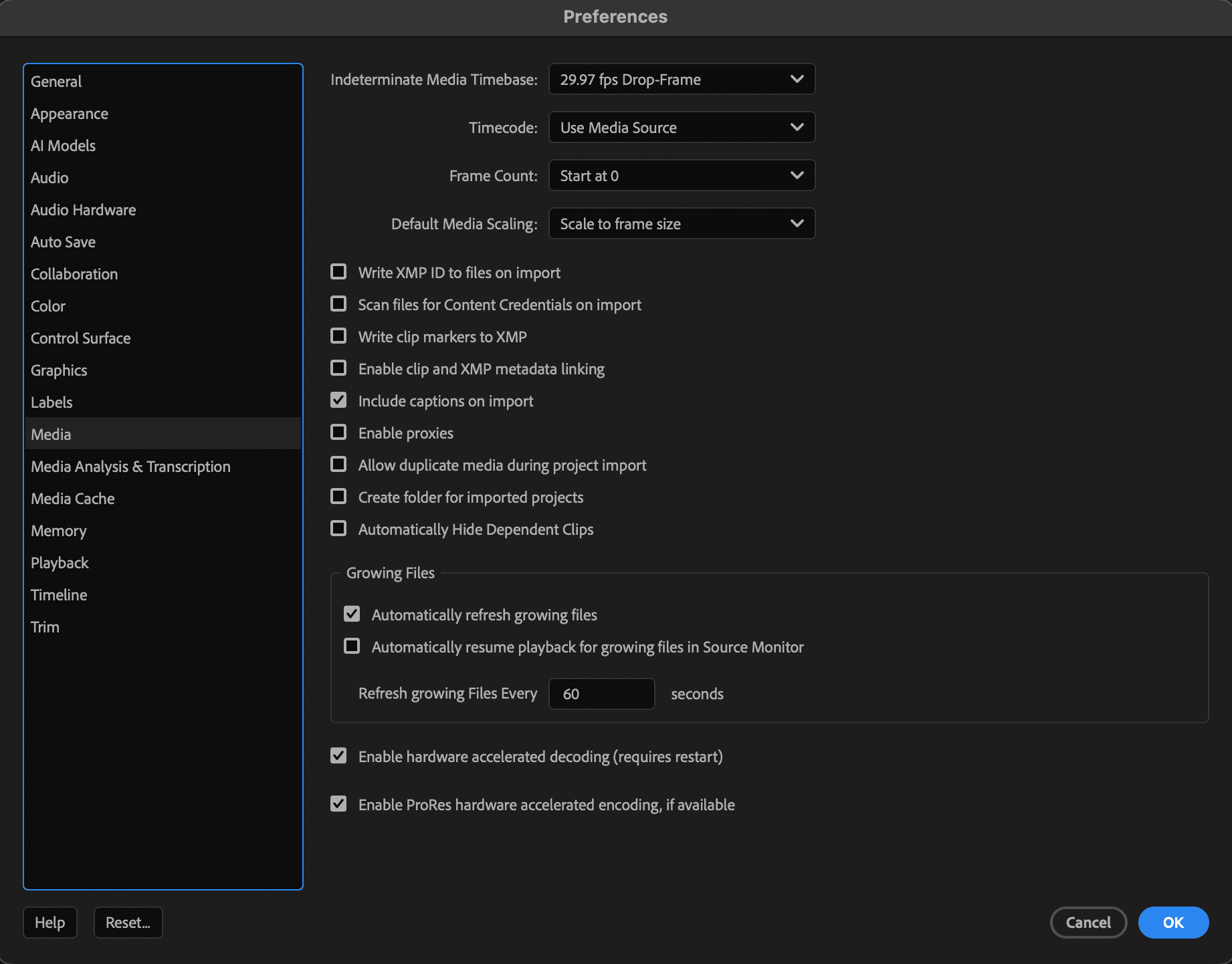


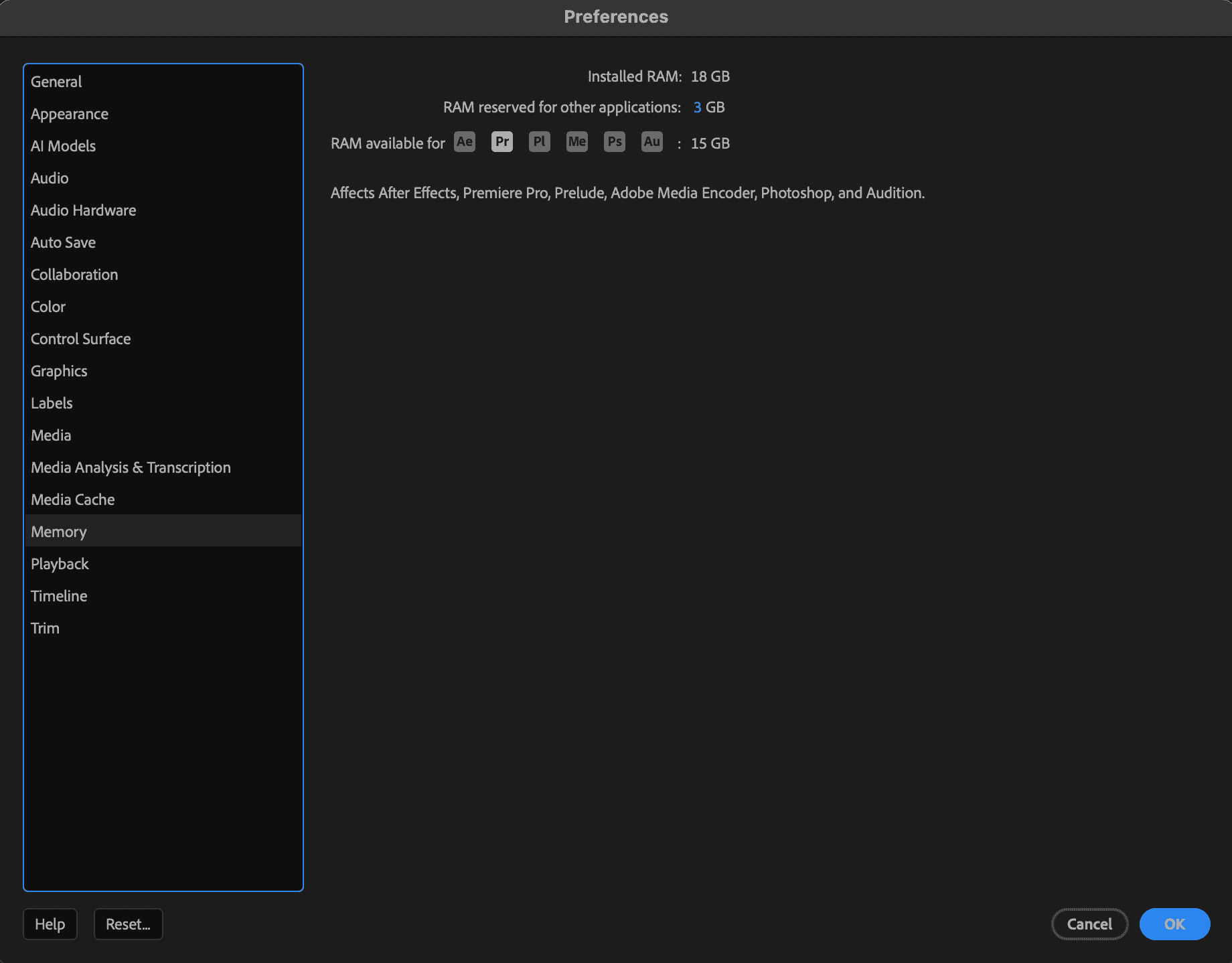

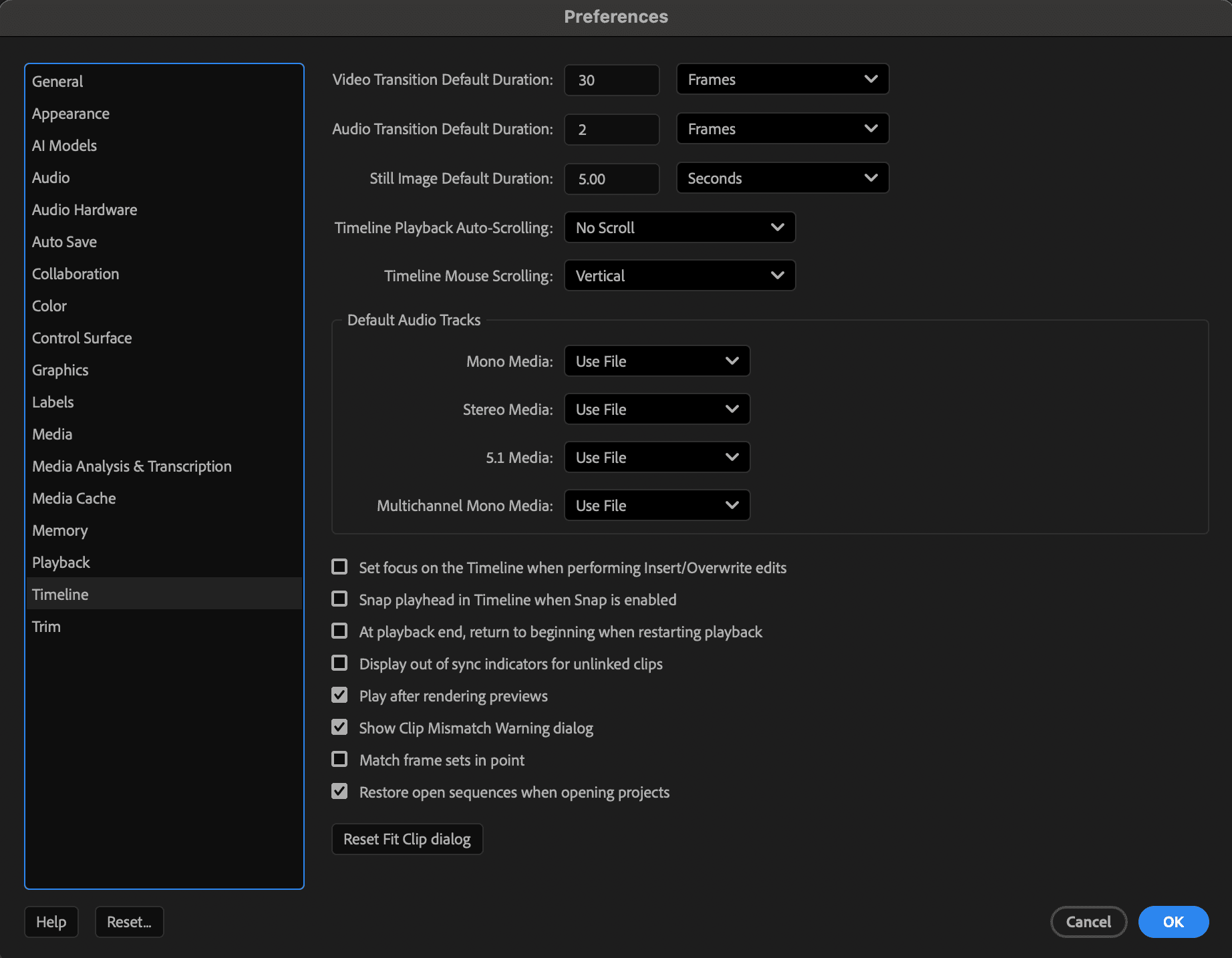
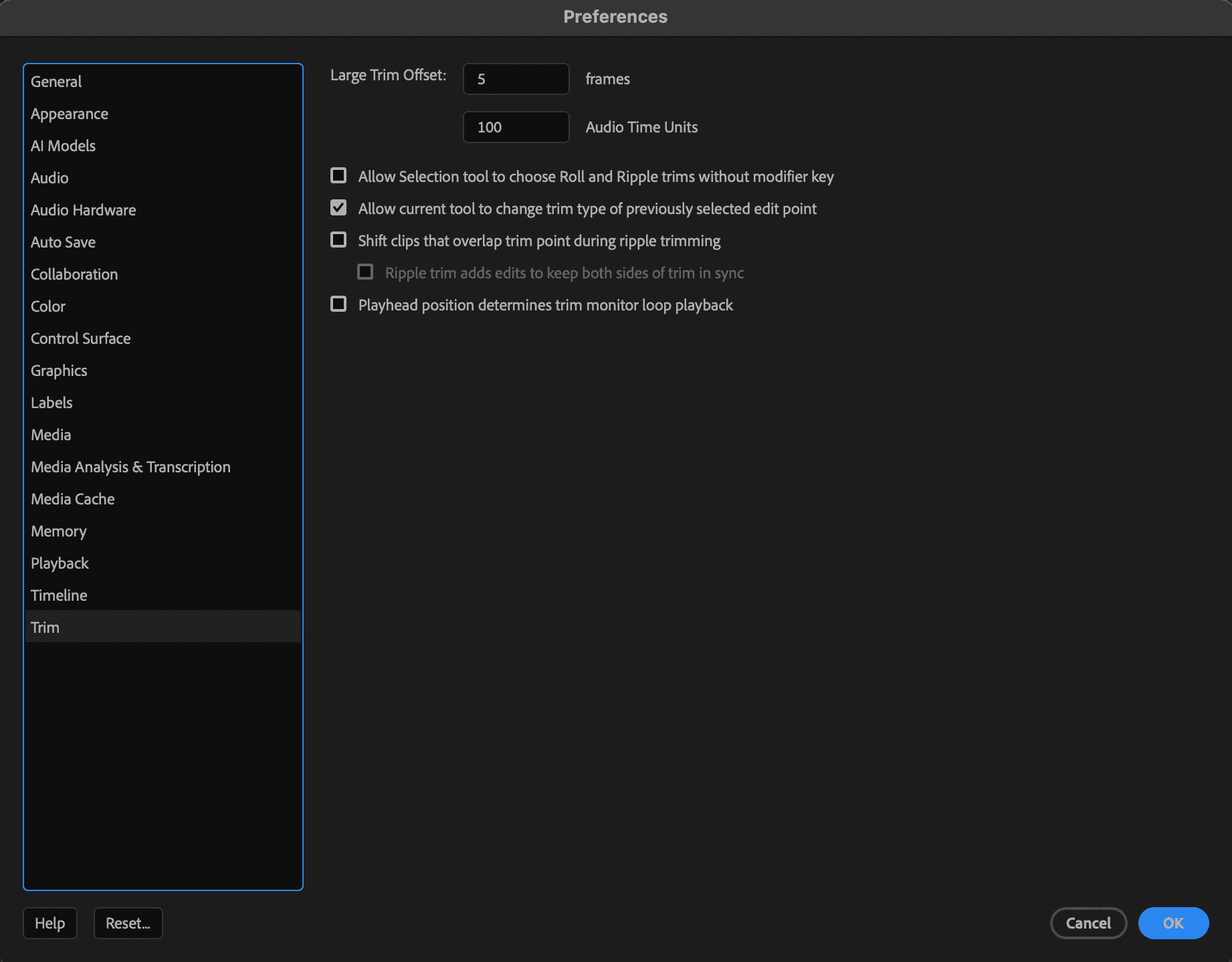
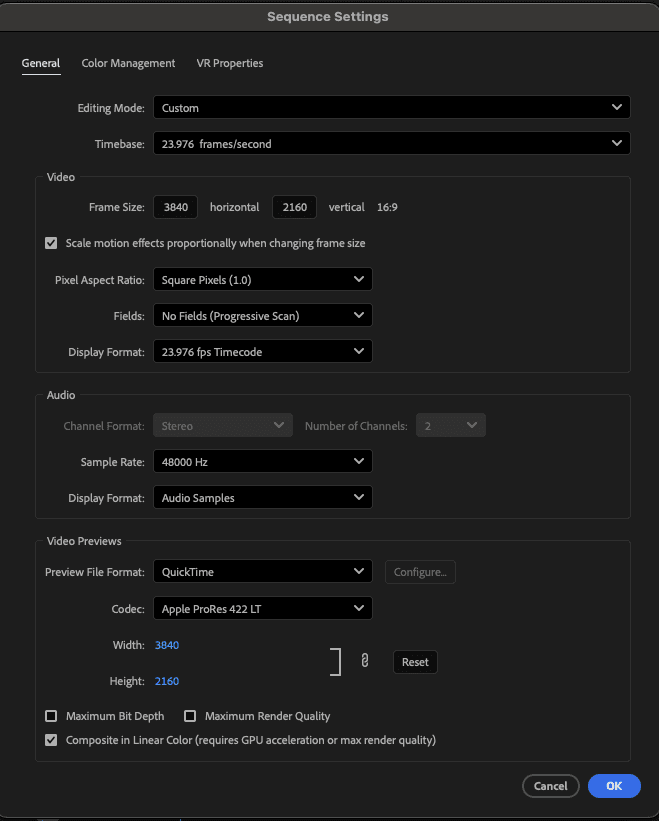
We want to be editing in 4k so that when we compress to 1080p we have the highest quality possible for instagram (more on this later.) Ensure you sequence settings are matched with mine.
Importing my Premiere Pro presets
Go to effects > click the hamburger icon > click on import presets > click on the .prfpset.xml file (included in drive are perfect voice over, rounded corners, and subtle wave.)

Importing my key binds (MOST IMPORTANT FOR EASE OF WORKFLOW)
Under documents go to adobe → Premier pro → Username → Mac → and drag in my BJSkbd.kys preset.
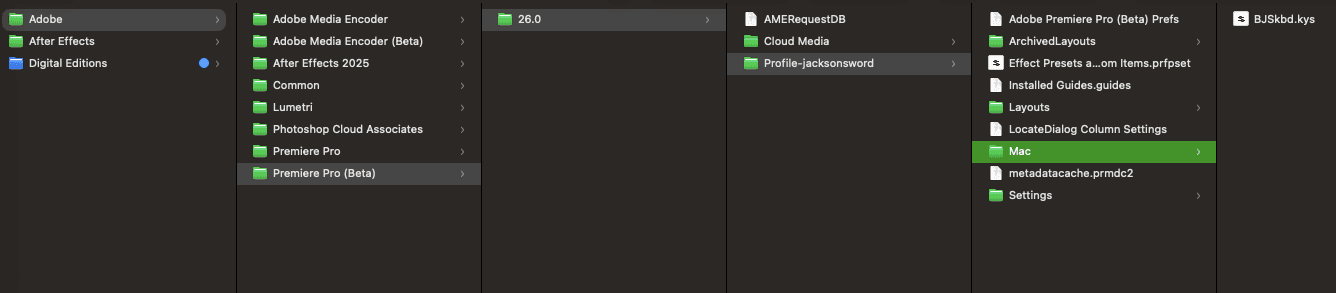
In Premiere go to → settings → keyboard shortcuts →

Under preset ensure BJSkbd is selected:
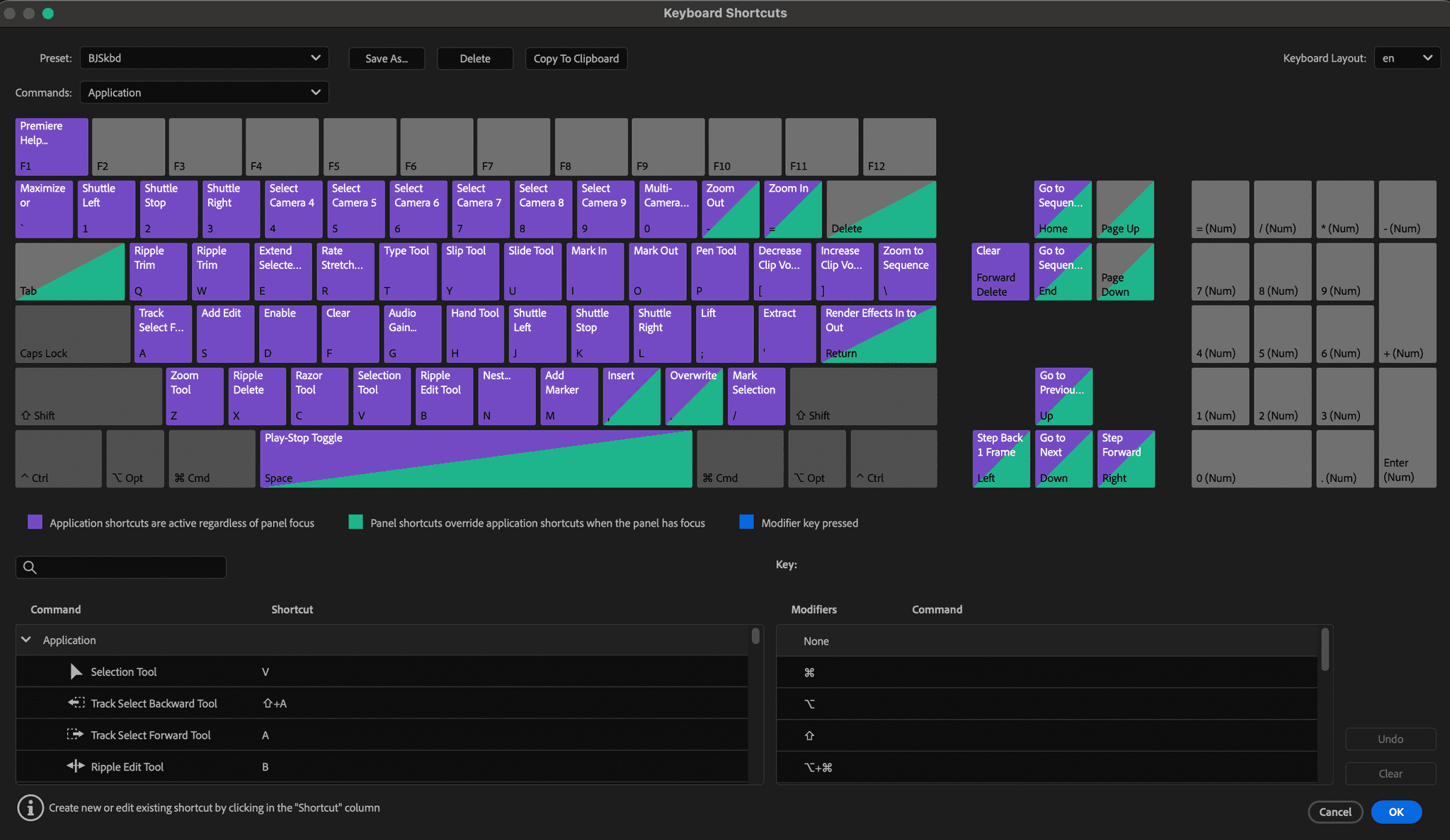
This is what each modified key bind does:
KEY | Name | Purpose |
|---|---|---|
1 | Shuttle left | Make the video play in 2x speed backwards |
2 | Stop shuttle | Stop the speed up or down |
3 | Shuttle right | Make the video play in 2x speed forwards |
Q | Ripple Trim (Left) | Allows you to ripple delete clips to the nearest cut left |
W | Ripple Trim (Right) | Allows you to ripple delete clips to the nearest cut right |
X | Ripple delete | Makes all tracks ahead of the delete move to where you deleted, helps speed up sequencing |
Another thing that helps with speed if having your play head being an extensions of your mouse. This is so you can scroll to a clip and use the key-binds to cut it to your liking. This takes out multiple inputs per cut which over time add up as a massive time save.
Go to sequence settings and turn “selection follows playhead” on

2. EDITING PLAYBOOK
A lot of people think editing is overwhelming and don’t get me wrong it can be.
But you don’t need to be a pro editor to make great videos, most of the time the best editors just have go-to editing technique they use to make sure the base quality of their edits is at a higher level.
1. The “5-second rule”
In short form, no clip should ever be longer than 5 seconds. This doesn’t mean you have to be cutting all over the place but even something as an angle change to break the pace aid’s in increasing your video’s retention.
I typically cut every 2-3 seconds or every line.
Be careful here, you don’t want to overwhelm the viewer with too much visual stimulation, it can take away from the point and dilute the value.
2. Pattern zoom
Do you ever watch back your video and it feels “too static?” A great way to fix that is a subtle zoom in or out, alternating throughout the video.
(Start with a zoom in at the hook to pull viewers attentions.)
This is also really easy to do and great way to practice key-framing:
Go to the key-framing section for a particular clip and decide wether or not it’s a zoom in or out.
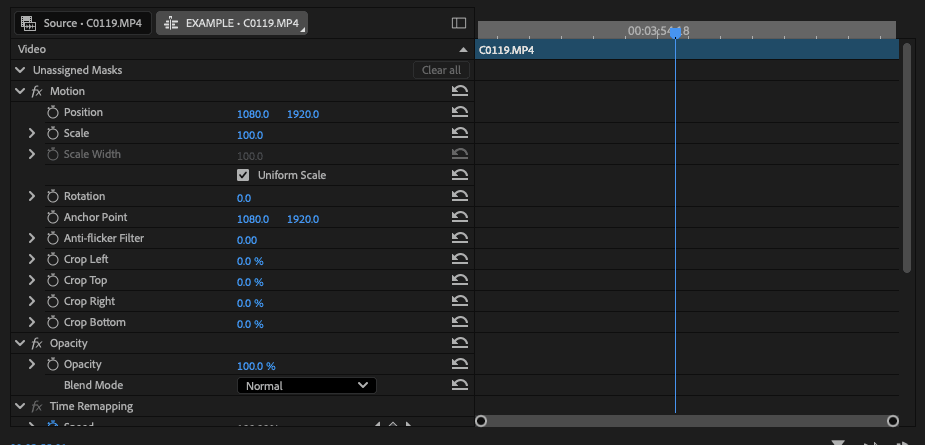
To create a keyframe, click the circle icon next to the name of the attribute. You can keyframe LITERALLY any effect, it’s awesome.
Create a keyframe for “Scale,” at 100 and then another with for the zoom. I typically do 130 depending on the clip, you want it to have a LITTLE zoom, no big movements.


If you want the zoom to be in, put it the larger keyframe at the end of the clip. If you want the zoom to be out put the larger keyframe at the front.
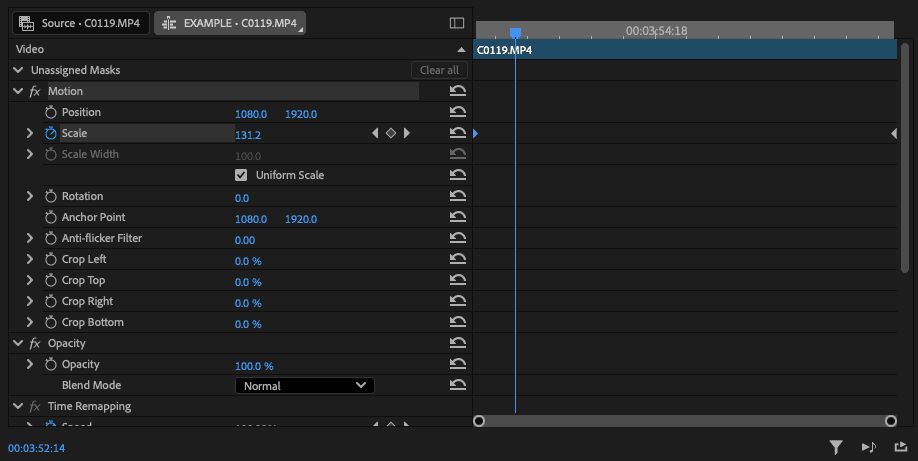
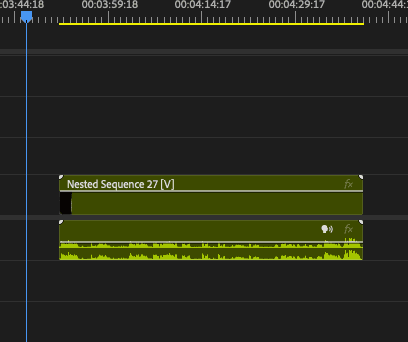
You can also use this across multiple clips by selecting multiple clips and pressing “N” to nest them. You repeat the above process for that nested sequence.

3. Speed ramping
This is a fantastic tool for pace. It’s also a great “bandaid” for clips that are a little off. Sometimes you’ll need to have one section a clip linger for longer or go away faster — this makes those sections feel seamless.
If you’re doing a voice-over you can also use it to match your lips to any particular line.
And it only takes a few clicks:
Click the “fx” button in the timeline → time remapping → speed
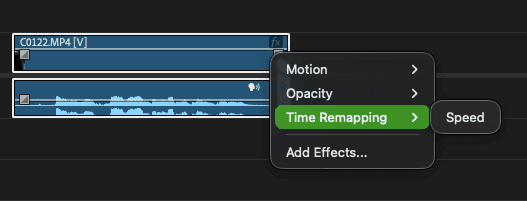
When doing speed ramping it helps to have the clip size be larger so that you can control the ramp better, go to the left most side of the timeline and drag “V1” up.

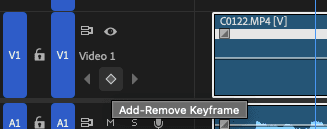
Press the diamond shaped button to add a keyframe.
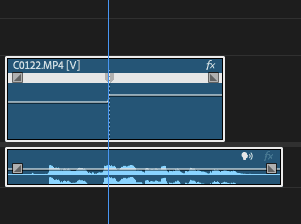
Slide up or down on the white line that appears in order to go faster or slower, respectively. You can also adjust this in the regular “effect controls” section.

4. J cuts and L cuts
A J-cut is when the audio from the next clip starts before the video cuts. It helps roll into the next scene or talking point.
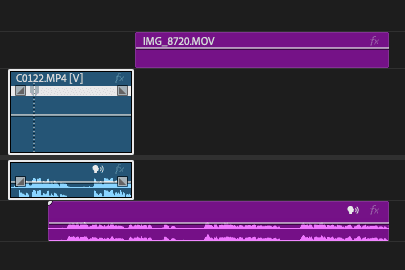
An L-cut is when the audio from the last clip continues over into the next. This is great for b-roll inter-splicing.
5. Masking
DON’T BE SCARED. MASKING CAN’T HURT YOU ANYMORE.
Recently the Adobe gods have blessed up with an update that makes masking literally 5 clicks. It used to take HOURS to do what it can do in about 5 minutes now.
Masking is great because allows us to basically cut out anything in our videos and put it some where else. This is how I do my big or small person effects.
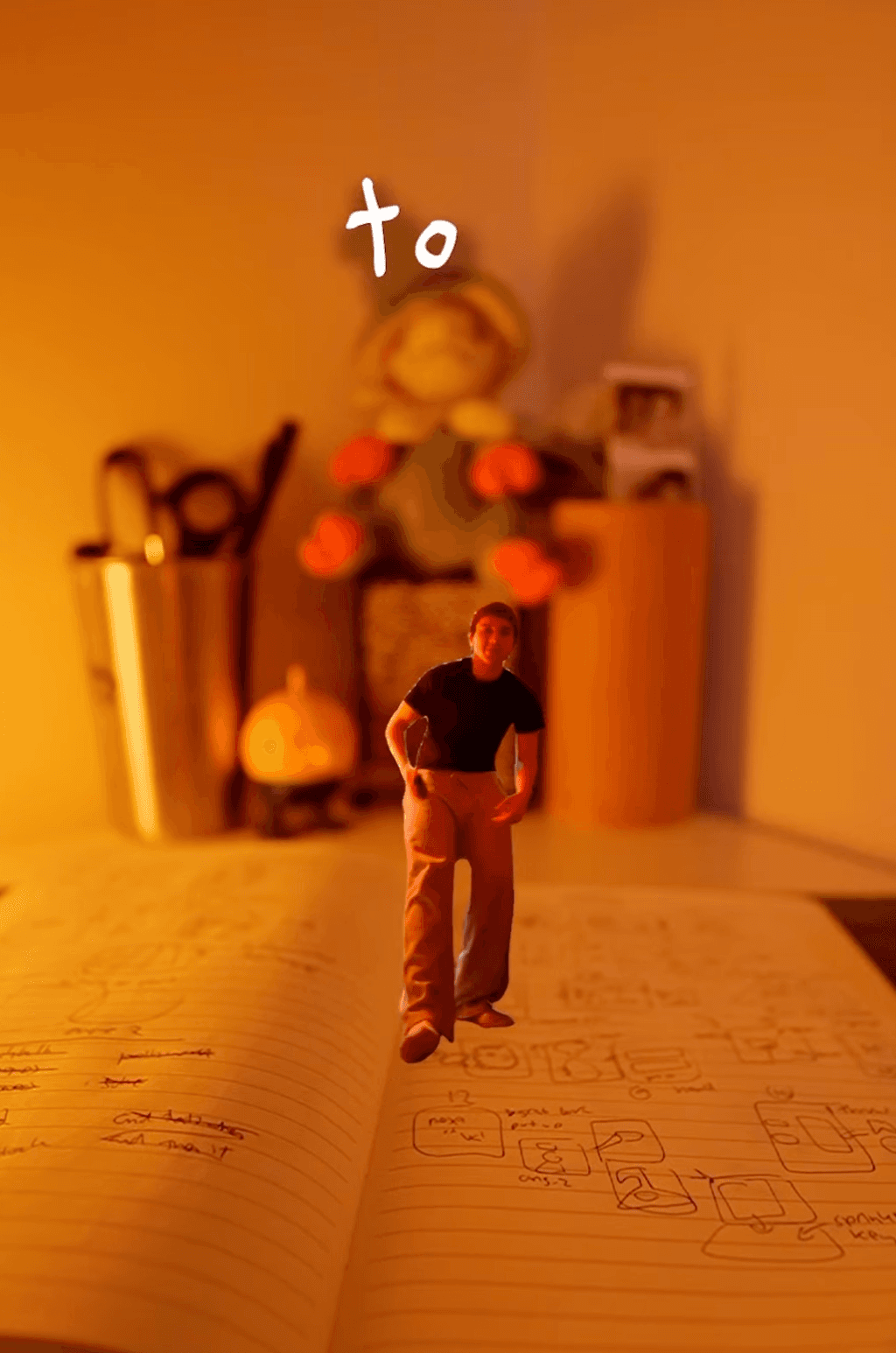
Here’s how you can do it too:
Find the subject you want to mask out → select the object mask tool and make sure “Show Object Hover Preview” is on → it will show you want it thinks you want to mask out.


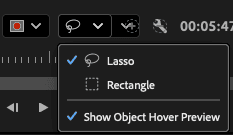
This located under the clip in the “Program” tab.

You also have options for a circle or rectangle mask. If you want to draw your own you can use the pen.
Click on the object mask and it will generate a white outline. You can cut out parts you don’t want in the mask by holding option and lassoing out the excess
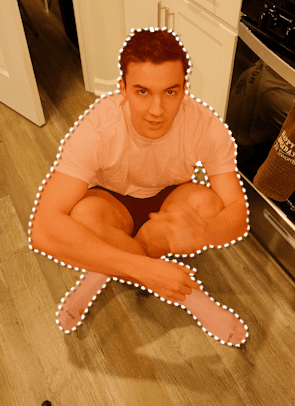

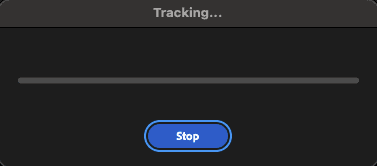
Next navigate back to the “Effect Controls” panel → go to unassigned masks → Object Mask (01) and click the double arrow icon, this will AUTOMATICALLY track the mask and add keyframes at every frame of the clip.


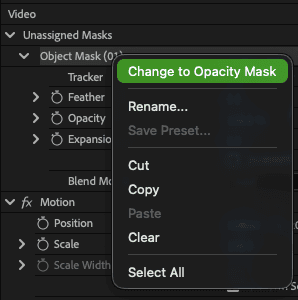
From here you can right click the Object Mask (01) and change it an opacity mask and mess with the feathering to clean up the edges.
This creates that clean cut-out effect and now you can put your mask over top any other clip seamlessly.
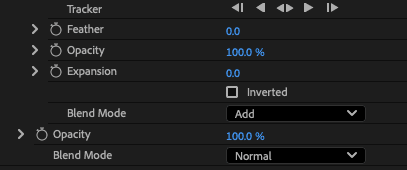
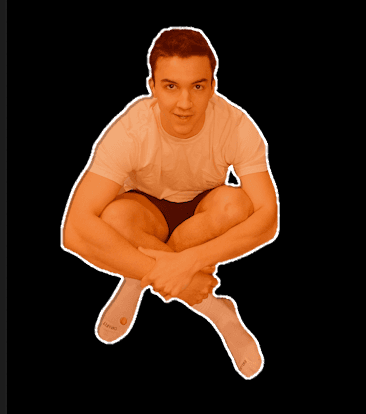
But wait! There’s more. You can also apply masks to any effect. (for this example I used Lumetri color.) Just select the effect you want to mask and follow the same procedure as above.

6. Match cuts
Match cuts may be one of the most known editing tricks.
All you have to do is well, match cuts.
You start with a subject, maybe it’s you, a mug, anything.
Film the subject in the middle of the frame in multiple locations.
Then when editing cut every clip to be .3 or .5 seconds and put them all together.
Throw a “sting” sound effect behind it for polish. (I have these in my editing assets folder.)
You can do this with text as well, changing fonts, colors, italics, or how bold it is.
7. Blur effects
Blur is great for transitions and shifting the viewer focus on things.
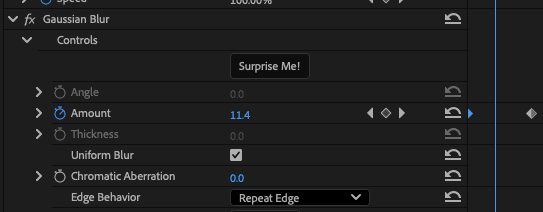
I use gausion and directional blur the most. Mainly for when I have a shot with a lot of text that I don’t want to conflict with the subtitles.


I use mask’s feather slider to make the blur seamless. You can also keyframe in blur to make it fade in and out much smoother.
8. Opacity key-framing
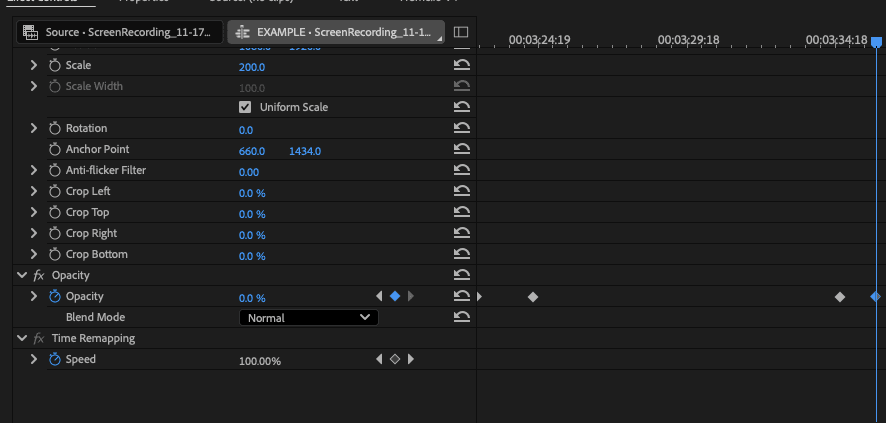
Lastly is opacity shifting. This is how you make things fade in and out.
All it requires is a simply keyframe from 0 → 100.
You also want to make sure the end of the clip has 100 → 0, so it’s not slowly fading throughout the entire duration.
3. THE EDITING PROCESS
The goal is to edit as good as possible as fast as possible.
We want a strong hook, 2-4 unique shots per video, clear pace, readable captions, clean sound design, and high retention without feeling brain-rot-y.
I follow this editing flow for every single video to ensure quality at every stage.
STEP ONE: SEQUENCING
So the first step in our editing adventure is taking all of the raw clips, cutting them down to the best takes, and putting them in order.
Before you make ANY cuts, save yourself time by doing the color grading first.
A lot of people get overwhelm by color grading but just keep it simple.
There are so many LUTs within my editing assets folder but most of the time I don’t really use one.
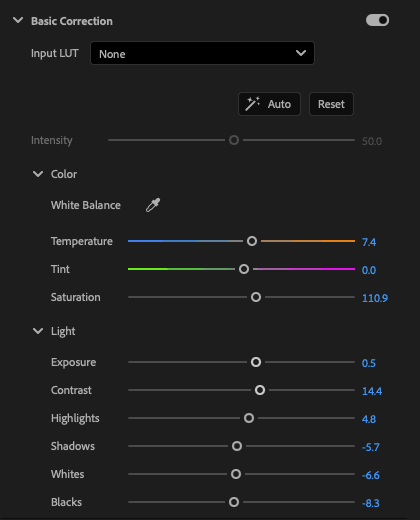
I do micro adjustments to saturation, exposure, contrast, etc.
I shoot for what I like to call “iPhone+” basically what could be shot on an iPhone with a little bit of polish.
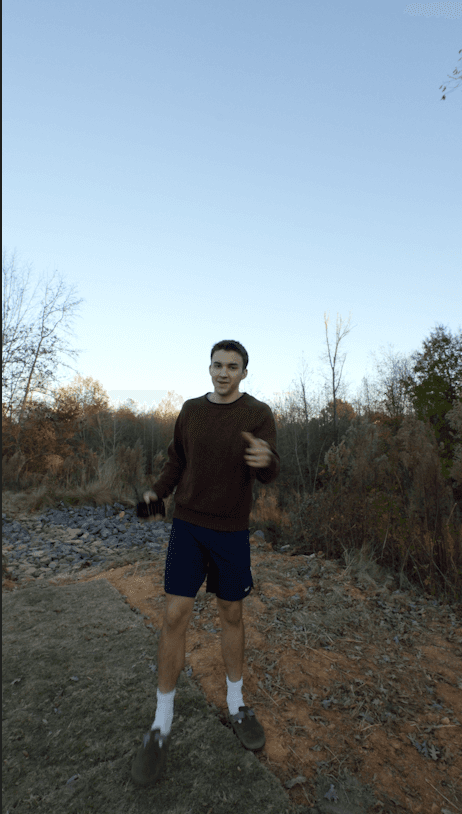
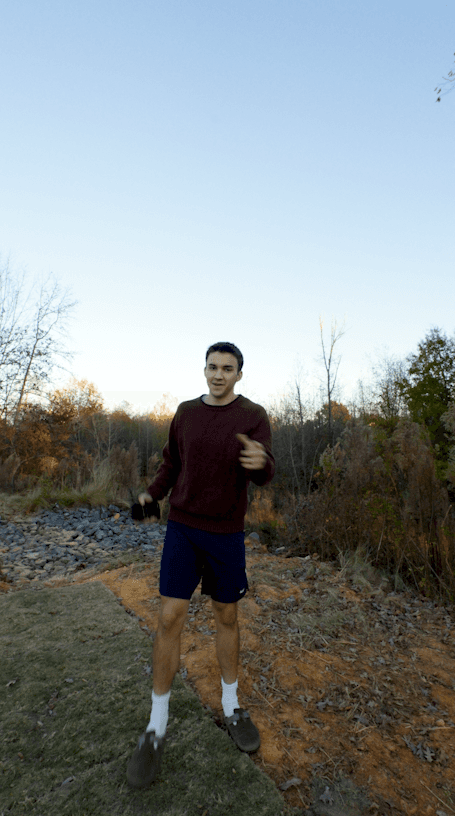
Then save yourself even MORE time by fixing the composition of your shots
(the reason were doing these first is because we don’t want to cut up all the clips and have to make the same edits on each individual cut later.)
This is when you crop into clips to make sure you in the center as much as possible.
Use the composition overlay you downloaded earlier to make sure you’ll have room for all your captions when you go to put them in.
After everything looks good we go and cut out any fluff → extra breaths, pauses, or stutters (unless intentional.)
Every second needs to push story forward.
This is also when you add in b-roll. A good rule of thumb to make b-roll feel seamless is to splice it in in bursts, 2-3 clips at a time.
The majority of cuts here will be hard-cuts. That’s when its just:
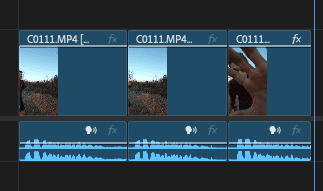
Clip one → clip two → clip three and so on
BUT inter-splice the J and L cuts we talked about here as well.
The general pace of the video should be pretty apparent at the end of stage.
After you’ve put it together, you can record a voice over (if applicable)
A voice over is recommended if you have bad audio quality in general or if a shot’s audio got messed up.
(if you have to stop and think if you have bad audio quality in general — you do.)
You can use anything from a $1000 dollar mic to your phone being held 6 inches from your mouth. Luckily for you I have my voice over preset effect that you imported and can drag and drop to instantly improve the quality.
It should set the voice over decibel level to +5.
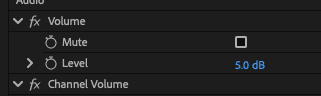
To have a good voice over: listen to each clip → record → repeat. You want to match the cadence as much as possible, you can play around with tone to aid in the emotional feel.
STEP TWO: POLISH
This is when you add the zoom in and out to all the clips or nested sequences.
It’s also when we spend a little more time on the unique shots to make sure they’re looking really clean. (Masking, clone shot cropping, etc.)
You don’t want anything after this stage to look tacky or poorly done. If something looks bad visually it can take viewers out of the experience, so most of the time less is more.
STEP THREE: CAPTIONS
Captions are the most tedious part of any video.
You want 1-3 words max at a time, I like to sit in the 2 range.
The only exclusion for this is in the hook or important words in the video.
You want them centered as much as possible without covering your face. Prioritizing moving to the top of the screen if the middle is covered.
My general decision making process for captions is:
If the visuals are doing a lot, the captions are simple
If the visuals are more static, the captions are doing more
They need to feel blended into the video, standing out when they need to but not taking away from the message.
So save yourself time (again) use auto captions as a blanket.
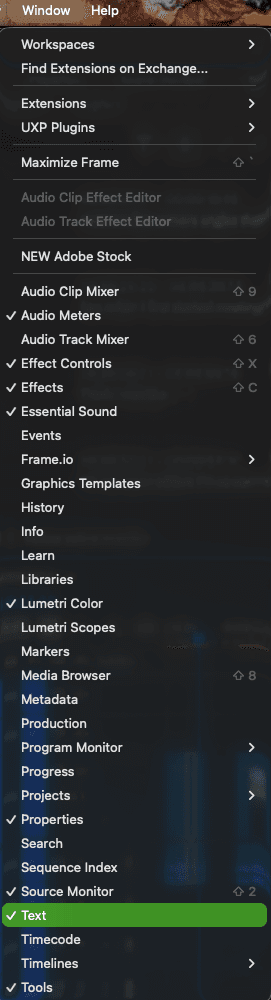
Go to Text window and click transcribe (if you don’t see it go to window → and click text, also make sure the properties window is open as well.)
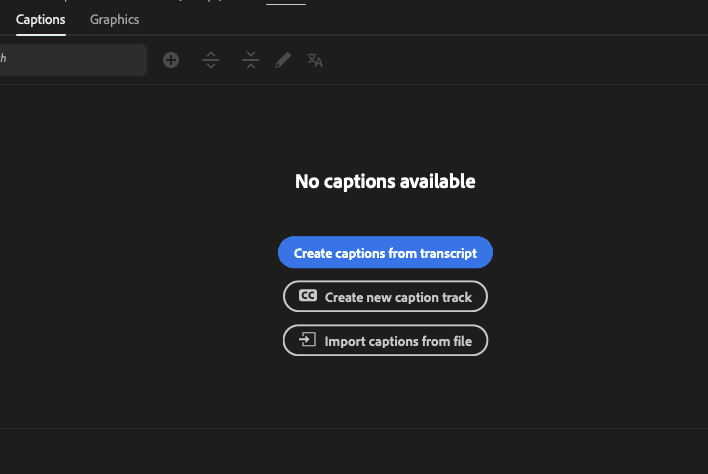
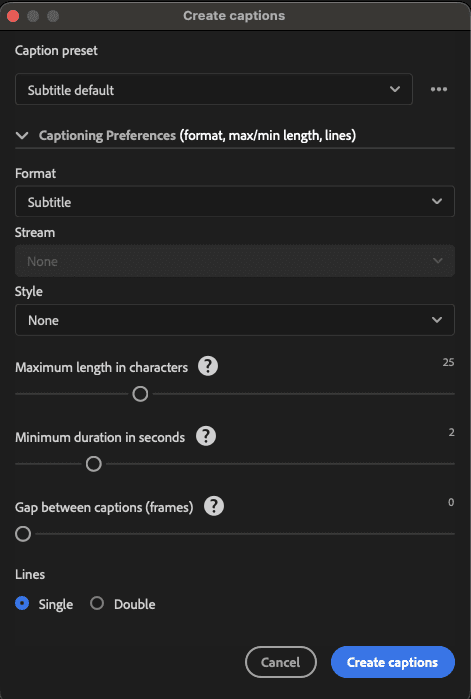
Once your clips are transcribed go to the captions tab and click generate captions. Here are the best settings for that:
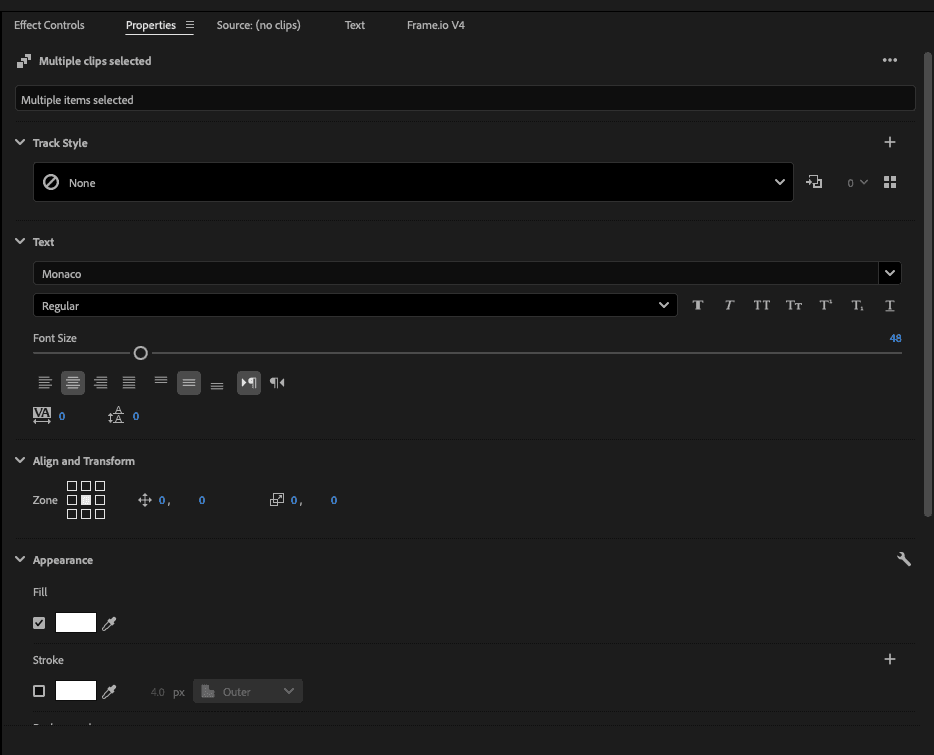
Then go down to the timeline and press Shift + A to select all the captions (this is the key bind for selecting all of one track, just a let you select everything.) → open the properties window, select your font, add a shadow if needed, and move your captions to where they need to be, you can select different sections if the caption location moves throughout the video.

But we’re not done there, auto captions are quite boring are there own and we have a title font for a reason.
For things like tip step numbers, major keywords, or plot points use the title font to bring the point home.

I also like to have my title fonts be different colors so that they stand out a bit more.

Use masking to have you text behind or in-front of things for stylistic flair. So chiche!
STEP FOUR: SOUND DESIGN
This is when you use all my sound effects you downloaded and the personal music library you curated during the authentic branding lesson.
Any other sound effects you need can be downloaded off of YouTube or elsewhere.
However, when you grab to much SFX from random sources your project feels inconsistent.
You need to commit to a style. Just like the visuals, the sound needs to match your vibe.
Sound packs are the easiest way to stay consistent across projects. For example, using a transition pack with risers, hits, and whooshes designed in the same aesthetic ensures your entire edit feels coherent. That’s why I’ve curated a bunch of vintage sounds to match my cinematic vibe.
I always do the music first.
Have a song change every 5-10 seconds. I typically have around 5 songs per video, this helps to differentiate the sections as well as drive home the emotions.
Use the artists intention if your feeling stuck on what song's to use (meaning hook, bridge, chorus, or ending of any song)
The tone of your video is dictated by the music. There are right and wrong song choices.
Sad moment → sad song.
Happy moment → happy song.
Cut the music when you want to make a strong point.
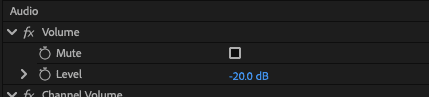
Also keep the volume at are -20 db, you don’t want to over power your voice.
To do this cleanly without sounding choppy…
Use a hit, snap, or click at the end of a song to make the stop feel intentional.
Leave space for the pause to breath while slowly bringing in a riser.
Add a whoosh at the end of the riser as you transition into the next song for a nice transition.
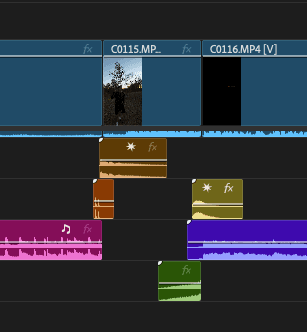
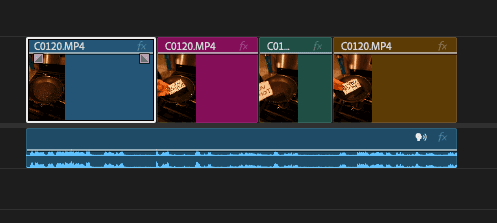
The first song is pink
The click is orange
The hit is brown
The riser is green
The whoosh is yellow
The second song is magenta
Advance techniques:
If you want to make a riser native to the song:
Take the first beat (or even the tail end of the song).
Reverse it and use that reverse clip as a riser.
This creates a natural swell into the actual track, in perfect pitch.
You can add swells or whooshes here to further ease it in.
You can also ease out of a song by:
Cutting before the next beat.
Adding studio reverb (Great Hall preset is a solid start).
Next up is the sound effects, less is more here.
Sound effects house keeping
Frequency layering
When you drop in a single layer of sound the mix is flat. Meaning both the high and low ends aren’t balanced right.
Think of sound design like building a cake. Each sound sits at a different frequency layer: low, mid, high. By stacking multiple sounds that hit different parts of the spectrum, you get a fuller, richer effect.
Example:
A high whoosh works for light movements but lacks weight.
A low whoosh adds power but still feels incomplete.
So we layer low, mid, and high whooshes to creates depth and realism.
Keep in mind your dialogue and music while using this technique. They sit in the mid frequencies, so too many mid tones will make your audio feel messy. (this is also why there’s a DeEsser in my preset)
Using risers with purpose
Don’t just slap a reverse bell riser everywhere.
Use them to build anticipation, then:
Follow with an impact, silence, or a downer → second riser → impact.
Diegetic vs. Non-Diegetic sound design
Diegetic = characters can hear it (realistic sounds in the scene).
Non-Diegetic = only the audience hears it (cinematic effects, music).
Mixing
When monitoring the overall mix of your track, quick red peaks are fine for impacts, but don’t have your entire video peaking.
Always test mixes with both headphones and phone speakers. Something that sounds amazing in headphones can sound muddy on an iPhone.
While there is a place for “meme” or funny SFX, most of the time we want to stick to non-diegetic or “ambient” sound design.
This is the style that pulls a video together audibly. We never want sound design to distract from what is being said.
To pull off ambient sound design ask yourself:
What would this clip naturally sound like if I had a bit of super-hearing?
This means: whooshes on fast hand swings, door openings, etc → if something has a sound that already exists from an actions put it in. This makes your video feel alive and real.
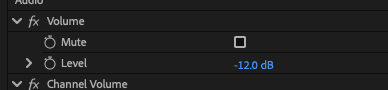
A good decibel range for sound effects is from -10 to -12.
The best time to use direct SFX is when you want to emphasis a keyword or point.
Example: "I make content for anyone who is struggling to become a creator"
The word content would have a mouse click SFX and creator could have a quieter flash SFX. Clean and gets the point across without being overwhelming to the ears.
STEP FIVE: REVISE
After you have done everything above → watch your video 3 times in a row.
Write down everything that bugs you or feels “off.”
Then, fix it.
This will be tedious BUT:
You can only get better if each video is your best.
Ironing out these little imperfections over time is how you improve.
Obviously don’t overdue it and get stuck in the revision cycle for hours.
But be a little bit of a perfectionist, push yourself to be better.
Viral videos lie in the annoying little things you don’t want to take the time to fix.
STEP EIGHT: EXPORTING
Now, you just spent the last 5ish hours working on a project. Do not mess up the exporting step and diminish your hard work.
I made the same mistake when I first started and the results of before and after I figured this out speak for themselves.
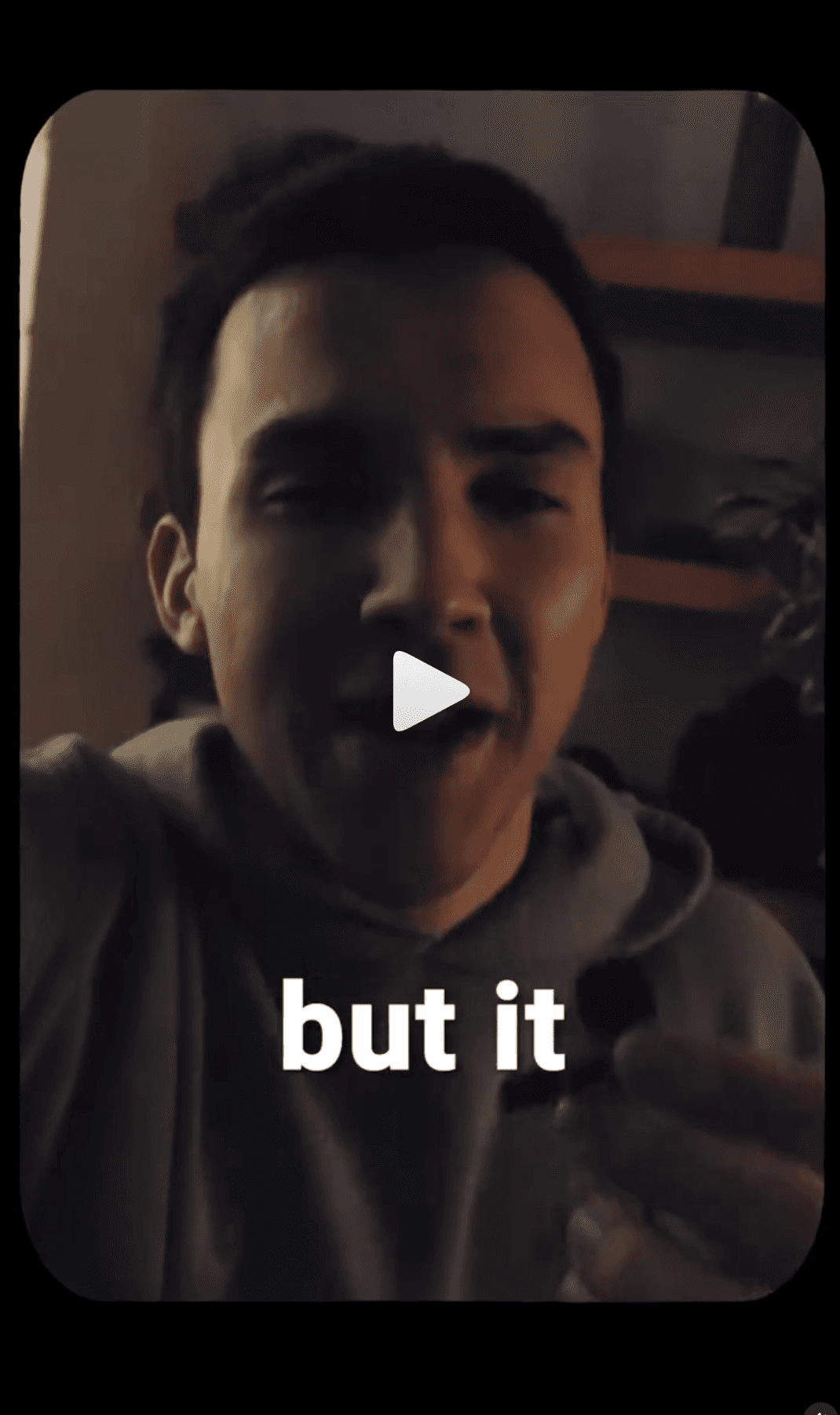
($2000 Camera)

(iPhone 16)
The first major quality boost lies in export settings, here are the best for each major platform:
Premiere Pro

DaVinci Resolve
Format | MP4 |
|---|---|
Codec | H.264 |
Resolution | 3840 x 2160 (4K UHD) |
Bitrate | 45–60 Mbps |
Quality | “Use Optimized Media” turned on |
Encoding Profile | High |
Final Cut Pro
Format | MP4 (H.264) |
|---|---|
Codec | H.264 or ProRes 422 |
Resolution | 3840 x 2160 (4K UHD) |
Bitrate | 20-40 Mbps |
Quality | High or Extreme |
Frame Rate | 24 or 30 fps (match timeline) |
CapCut
Format | MP4 (H.264) |
|---|---|
Codec | H.264 or ProRes 422 |
Resolution | 3840 x 2160 (4K UHD) |
Bitrate | 20-40 Mbps |
Quality | High or Extreme |
Frame Rate | 24 or 30 fps (match timeline) |
Now if you noticed we are exporting in 4k, but Instagram can’t handled that level of resolution and file size.
So how do we compress the footage without loosing that crispy quality?
With a free software called HandBrake. It’s able to compressing your files up to 90% without loosing quality (i.e. 1GB - 100MB),
HOW TO USE HANDBRAKE
Go to this website and download the software: HANDBRAKE DOWNLOAD
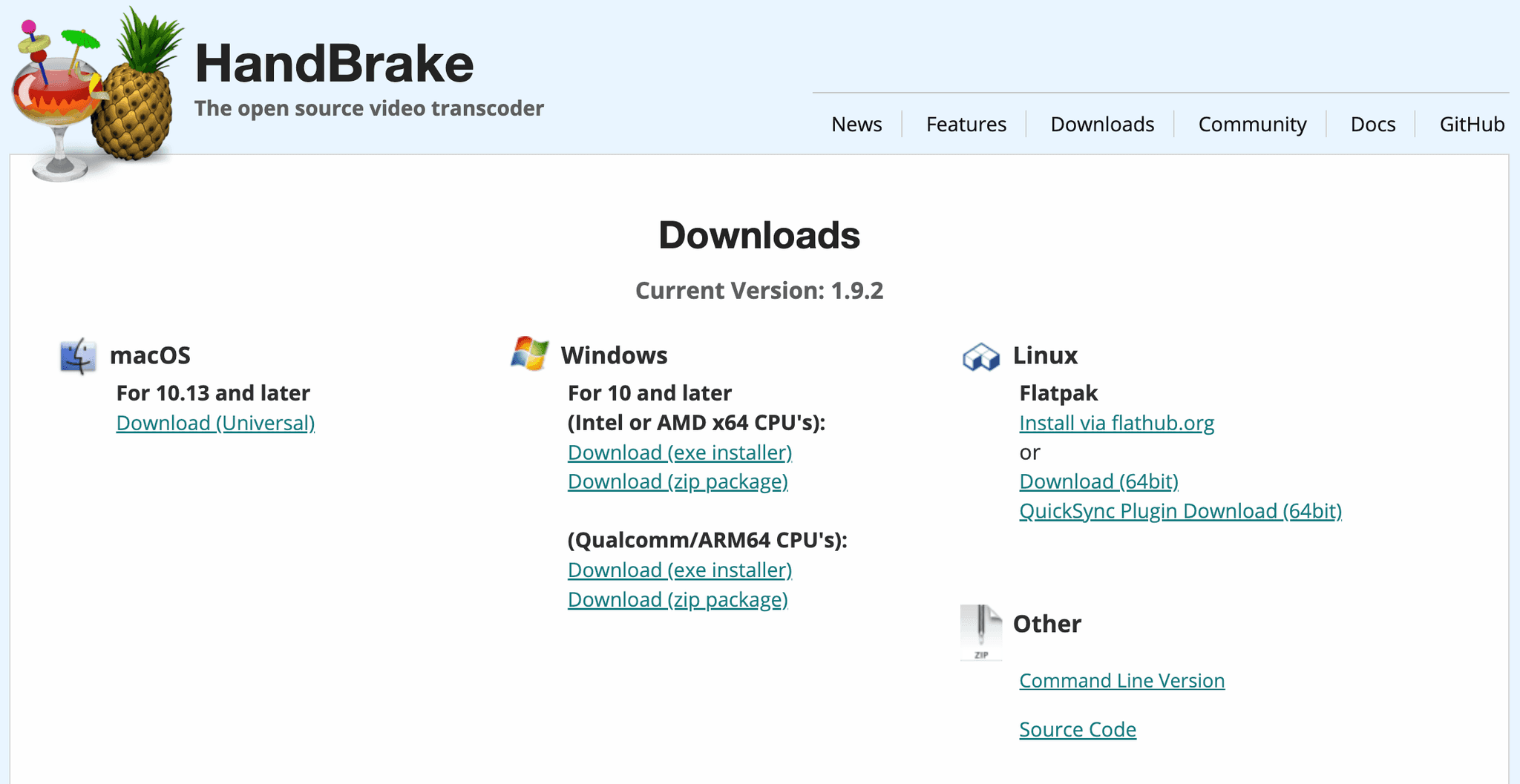
Once you’ve installed the software → open it and navigate to the top left corner and press “Open Source” → select your 4k video file in downloads → click on it and open the dimensions tab.

In this tab set the “Resolution Limit” to none, turn of the optimal size, and set the scaled size to 1080 x 1920. (make sure the display size is set to automatic
Next, navigate to the video tab and set the “Constant Quality” to 10.
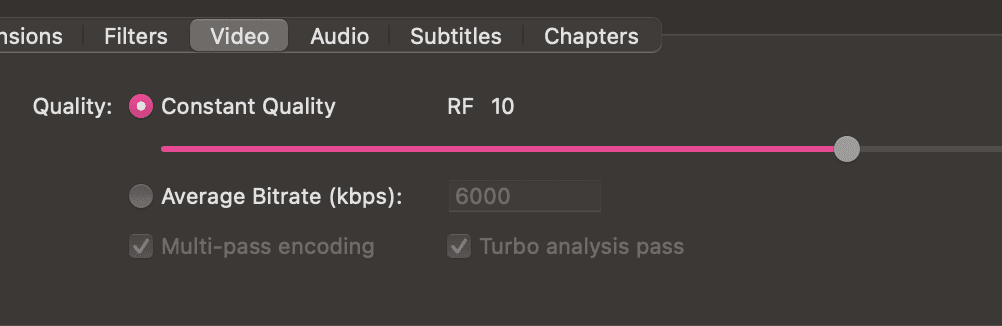
Press start! (your computer fans may get a bit loud here.)
Lastly when you go to upload make sure you have “upload at highest quality on” → this was a part of the Instagram setup.

